Documentation / Scanner

Scanner Table Guide

Last updated: 22/01/2025

Overview: Your Data Command Center

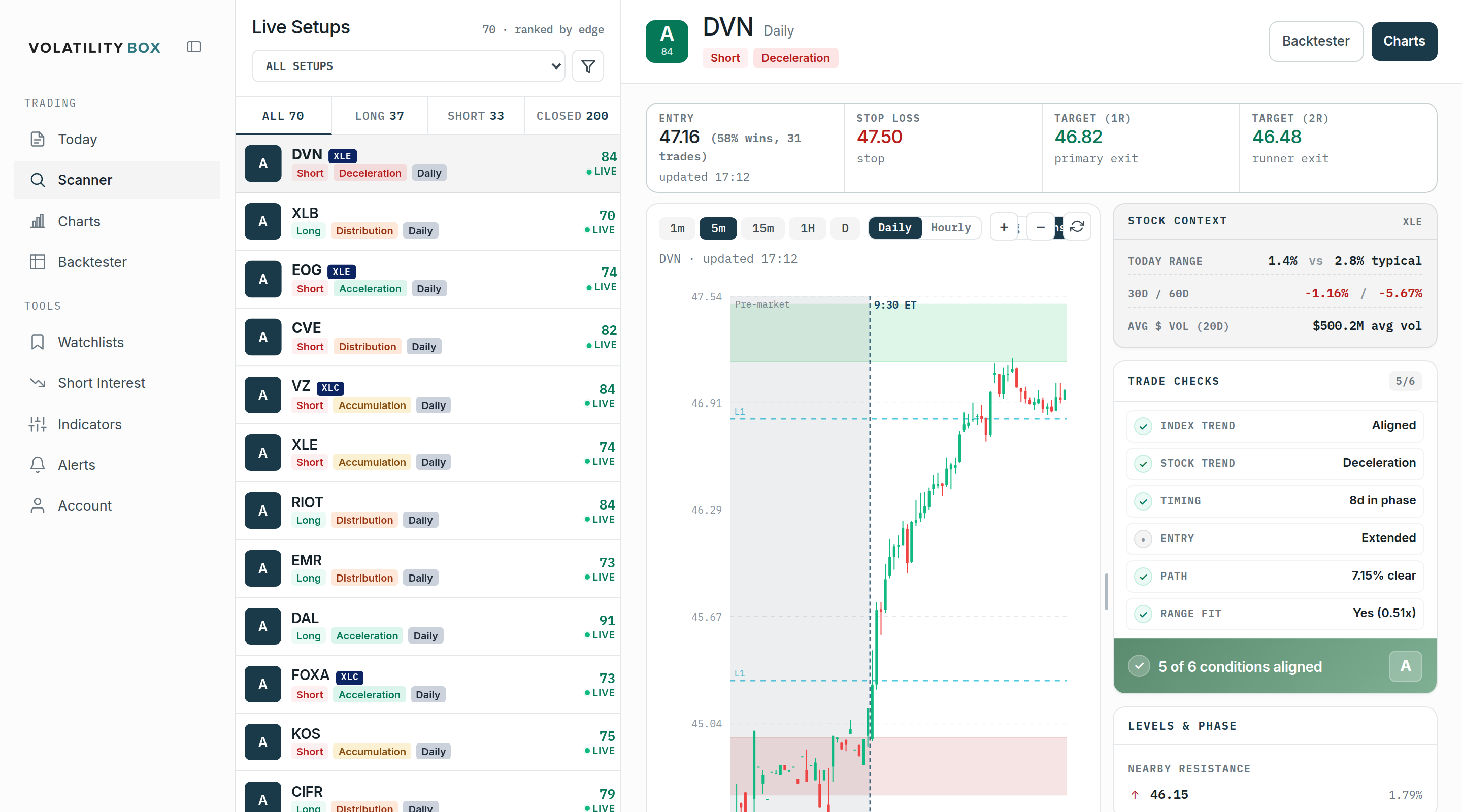
The Scanner table is where you evaluate and compare all active VB signals. Every column provides specific data to help you assess signal quality, historical performance, and current status.

This guide explains every column in detail, so you know exactly what you’re looking at and how to use the data in your trading decisions. This is an important aspect of using the platform effectively.

Column 1: Symbol

What it shows: The stock ticker symbol (e.g., AAPL, TSLA, SPY)

How to use it: Click the symbol to open the Symbol Page for visual chart confirmation and recent performance history. The symbol link is your gateway to deeper analysis.

The platform tracks 595 supported symbols across major indices, including S&P 100, high-volume stocks, and popular ETFs. This is an important aspect of using the platform effectively.

Column 2: Direction

What it shows: LONG or SHORT This visualization makes it easy to understand the data at a glance. This information is valuable for understanding how to use the platform more effectively.

How to use it:

  • LONG: Price broke above the upper VB band. The signal suggests bullish continuation with the upper band as entry, lower band as stop, and calculated target above.
  • SHORT: Price broke below the lower VB band. The signal suggests bearish continuation with the lower band as entry, upper band as stop, and calculated target below.

You can filter by direction in the sidebar. If you prefer one direction (many traders only go long), filtering saves time scanning through irrelevant signals.

Column 3: Conviction Score

What it shows: A 0-100 ranking based on five factors: VB Performance (30 pts), Momentum (25 pts), Market Pulse (20 pts), Support/Resistance (15 pts), and Risk/Reward (10 pts) This visualization makes it easy to understand the data at a glance. This information is valuable for understanding how to use the platform more effectively.

How to use it: Sort by conviction (highest to lowest) to prioritize the best setups. Use the conviction slider in filters to set minimum thresholds:

  • 80+: High quality, strong multi-factor confirmation
  • 75-79: Good quality, minor weaknesses
  • 70-74: Acceptable quality, selective trading
  • 60-69: Minimum tradeable, reduce position size
  • <60: Skip these

The conviction score is your primary quality filter. Most successful traders focus on 75+ conviction signals.

Column 4: Entry

What it shows: The exact price level where the VB band was breached This visualization makes it easy to understand the data at a glance. This information is valuable for understanding how to use the platform more effectively.

How to use it: This is your ideal entry price. If price is still near this level when you find the signal, you can enter at or near the entry price. If price has moved significantly past entry (e.g., entry was $100, price is now $101.50), you need to decide:

  • Enter at current price if there’s still room to target (check reward-to-risk from current price)
  • Wait for a pullback closer to original entry
  • Skip this signal and find another

For limit orders in your broker, use the entry price. For market orders, use current price if you’re okay with the adjusted risk/reward.

Column 5: Stop

What it shows: The price level where the signal is invalidated (the opposite VB band) This visualization makes it easy to understand the data at a glance. This information is valuable for understanding how to use the platform more effectively.

How to use it: This is your stop loss level. Place a stop order at this price immediately after entry. Never move your stop against your position (e.g., if LONG with stop at $98, don’t move it down to $97 to “give it more room”).

The stop is derived from the statistical band, representing the point where the VB thesis is wrong. Violating the stop means the volatility structure has broken down.

Example: MSFT LONG with Entry $378.50 and Stop $376.20 means you risk $2.30 per share. If you’re trading 50 shares, that’s $115 total risk. Make sure this aligns with your account risk tolerance (typically 1-2% of account per trade).

Column 6: Target

What it shows: The calculated profit target based on VB range and model type This visualization makes it easy to understand the data at a glance. This information is valuable for understanding how to use the platform more effectively.

How to use it: This is your take-profit level. Many traders use a two-part exit strategy:

  • Take 50% profit when price hits the target
  • Trail the remaining 50% with a stop (using the 8 EMA or previous swing low/high)

Alternatively, set a limit order to exit the full position at the target price for simplicity. This is an important aspect of using the platform effectively.

The target is statistically derived from the volatility range, but it’s not a guarantee. Some trades hit target in 30 minutes, others take 4 hours, and some never reach it before hitting the stop.

Column 7: Model Type

What it shows: Which VB model generated the signal This visualization makes it easy to understand the data at a glance. This information is valuable for understanding how to use the platform more effectively.

Options:

  • Hourly Aggressive (VBH Aggressive): Tighter bands, more frequent signals, designed for scalping/day trading (hold 30 min – 4 hrs)
  • Hourly Conservative (VBH Conservative): Wider bands, stronger confirmation, day trading with wider stops (hold 1-6 hrs)
  • Daily Aggressive (VBD Aggressive): Based on daily ranges, swing trades (hold 1-3 days)
  • Daily Conservative (VBD Conservative): Widest bands, multi-day swing trades (hold 3-5+ days)

How to use it: Filter by model based on your trading timeframe. If you’re a day trader who can’t monitor trades overnight, filter to Hourly Aggressive or Hourly Conservative only. If you’re a swing trader looking for multi-day holds, filter to Daily Conservative.

Column 8: Win Rate %

What it shows: The percentage of trades that hit the target (vs stopped or EOD) over the last 450 days on this symbol and model This visualization makes it easy to understand the data at a glance. Comparing these options side by side reveals which approach best suits your trading style and goals.

How to use it: Win rate gives you a sense of probability. A 62% win rate means 62 out of 100 trades hit target, and 38 hit stop or closed EOD without resolution.

Important: High win rate doesn’t always mean profitable. A signal with 65% win rate but poor expectancy might win often but with small gains, while losing with large losses. Always look at win rate AND expectancy together.

Most traders filter for minimum 50% win rate, though some successful setups have 45-48% win rates with strong expectancy (large winners, small losers). This selection helps you focus on the most relevant opportunities for your trading style.

Column 9: Expectancy

What it shows: The average profit or loss per trade over 450 days, calculated as: (Avg Win × Win Rate) – (Avg Loss × Loss Rate) This visualization makes it easy to understand the data at a glance. This information is valuable for understanding how to use the platform more effectively.

How to use it: Expectancy is the most important performance metric. Positive expectancy means the strategy makes money on average. Negative expectancy means it loses money over time.

Example: +$0.42 expectancy means that over 100 trades, you’d expect to make $42 total profit (assuming $100/trade standardized backtest sizing).

  • +$0.50+: Excellent
  • +$0.30-$0.49: Very good
  • +$0.10-$0.29: Good
  • +$0.01-$0.09: Marginal
  • Negative: Avoid

You can have a 55% win rate with +$0.60 expectancy (big winners) or a 70% win rate with -$0.10 expectancy (small winners, occasional large losses). Always prioritize positive expectancy.

Column 10: Market Pulse Color

What it shows: The strength of the current trend This visualization makes it easy to understand the data at a glance. This information is valuable for understanding how to use the platform more effectively.

  • Green: Strong established trend (ideal)
  • Yellow: Moderate trend with some consolidation
  • Orange: Weak or fading trend
  • Red: Choppy, no clear trend

How to use it: Green and Yellow signals tend to perform better because they have momentum backing them. Orange and Red signals are riskier because they lack strong directional bias. Filter for Green or Yellow if you want higher-probability setups.

Column 11: Signal Type

What it shows: The Market Pulse classification of the signal This visualization makes it easy to understand the data at a glance. This information is valuable for understanding how to use the platform more effectively.

  • FP (First Pullback): First retracement in an established trend – highest win rate
  • TC (Trend Continuation): Ongoing momentum in the direction of the trend
  • SP (Support Play): Bounce from a key support or resistance level
  • ME (Mean Extension): Overextended move, potential mean reversion
  • TR (Trend Reversal): Counter-trend setup, attempting to catch a reversal

How to use it: FP and TC signals have the best historical performance because they align with momentum. TR signals are riskier (counter-trend) and should require higher conviction (80+) before trading.

Column 12: Trend Alignment

What it shows: Is the signal WITH or AGAINST the established trend? This visualization makes it easy to understand the data at a glance.

  • WITH: Signal direction matches the trend (e.g., LONG signal in an uptrend)
  • AGAINST: Signal direction opposes the trend (e.g., LONG signal in a downtrend)

How to use it: WITH trend signals have higher win rates because you’re trading with momentum. AGAINST trend signals can work (especially TR types at major levels), but require higher conviction and tighter risk management.

Filter for “WITH” alignment if you want to stack the odds in your favor. This selection helps you focus on the most relevant opportunities for your trading style.

Column 13: Status

What it shows: The current state of the signal This visualization makes it easy to understand the data at a glance. This information is valuable for understanding how to use the platform more effectively.

  • Open: Signal is active, price hasn’t hit target or stop yet
  • Target Hit: Price reached the profit target
  • Stopped: Price hit the stop loss
  • EOD: Market closed before reaching target or stop

How to use it: Filter for “Open” to see only active signals that are still tradeable. Filter for “Target Hit” to review successful signals and study what made them work. Filter for “Stopped” to learn from failures and identify patterns to avoid.

Column 14: Entry Time

What it shows: The timestamp when the VB level was breached and the signal triggered This visualization makes it easy to understand the data at a glance. These color codes provide instant visual feedback without requiring detailed analysis of numbers.

How to use it: Fresher signals (triggered in the last 15-30 minutes) are generally better than stale signals (2+ hours old). If you find a signal from 9:45 AM and it’s now 2:30 PM, the setup may have changed. Check the Symbol Page chart to verify it’s still valid.

Sort by Entry Time (newest first) to find the freshest opportunities. Following this systematic approach ensures you do not skip critical steps in the process.

Column 15: Strategy Name

What it shows: The specific VB strategy configuration that generated the signal This visualization makes it easy to understand the data at a glance. This information is valuable for understanding how to use the platform more effectively.

How to use it: The platform runs multiple strategy variations (different band widths, different target calculations). This column identifies which variation produced the signal. You can use this data in the Backtester to compare strategy performance and find which ones work best on specific symbols.

How to Sort and Filter the Table

Sorting

Click any column header to sort by that field: This action takes just a few seconds and provides immediate access to the information you need. This information is valuable for understanding how to use the platform more effectively.

  • Sort by Conviction (high to low): Find the best setups first
  • Sort by Win Rate (high to low): Prioritize historically successful setups
  • Sort by Expectancy (high to low): Focus on most profitable setups
  • Sort by Entry Time (newest first): Find the freshest signals

Filtering

Use the sidebar filters to narrow down signals: This selection helps you focus on the most relevant opportunities for your trading style. This information is valuable for understanding how to use the platform more effectively.

  • Direction: Long, Short, or Both
  • Model: Select one or more model types
  • Conviction: Slider from 60-100 (set minimum threshold)
  • Win Rate: Set minimum percentage
  • Price Range: Filter by stock price (e.g., $50-$200)
  • Status: Open, Target Hit, Stopped, EOD
  • Market Pulse Color: Green, Yellow, Orange, Red
  • Signal Type: FP, TC, SP, ME, TR
  • Trend Alignment: WITH or AGAINST
  • S&P 100 Only: Filter for blue-chip stocks
  • Watchlist: Show only symbols from your custom lists

Combine multiple filters to create focused scans. For example:

Trend Following Day Trade Scan: Trend and momentum alignment are critical factors that significantly increase win rates. This information is valuable for understanding how to use the platform more effectively.

  • Direction: LONG
  • Model: Hourly Aggressive
  • Conviction: 75+
  • Market Pulse: Green or Yellow
  • Signal Type: FP or TC
  • Trend Alignment: WITH
  • Status: Open

This might return 5-8 high-quality signals instead of 30+ unfiltered results. This selection helps you focus on the most relevant opportunities for your trading style.

Practical Workflow Examples

Example 1: Morning Pre-Market Scan

  1. Open Scanner at 9:25 AM (5 minutes before market open)
  2. Filter: Status = Open, Conviction 80+, Direction = LONG
  3. Sort by Conviction (high to low)
  4. Review top 3 signals, click through to Symbol Pages for chart confirmation
  5. Choose 1-2 setups to execute at 9:31 AM

Example 2: Midday Opportunity Hunt

  1. Open Scanner at 1:00 PM (lunch hour)
  2. Filter: Entry Time within last 30 minutes, Win Rate 55%+, Expectancy +$0.20+
  3. Sort by Expectancy (high to low)
  4. Find 2-3 fresh signals with strong historical performance
  5. Execute the highest conviction setup

Example 3: Swing Trade Setup for Week

  1. Open Scanner on Monday morning
  2. Filter: Model = Daily Conservative, Conviction 80+, Market Pulse = Green, Alignment = WITH
  3. Sort by Conviction
  4. Review top 5 signals, backtest each symbol
  5. Choose 2-3 for week-long swing positions

Common Mistakes When Reading the Table

Mistake 1: Focusing only on win rate These metrics are calculated from actual historical data and provide reliable indicators of potential future performance. This information is valuable for understanding how to use the platform more effectively.

A 70% win rate with -$0.05 expectancy loses money. Always check expectancy.

Mistake 2: Ignoring signal freshness This is an important aspect of using the platform effectively. This information is valuable for understanding how to use the platform more effectively.

Trading a 3-hour-old signal without checking current price action. Always verify on Symbol Page charts.

Mistake 3: Overlooking Market Pulse alignment This is an important aspect of using the platform effectively. This information is valuable for understanding how to use the platform more effectively.

Taking AGAINST trend signals without realizing they’re counter-trend. Know what you’re trading.

Mistake 4: Not using filters This selection helps you focus on the most relevant opportunities for your trading style. This information is valuable for understanding how to use the platform more effectively.

Scanning through 40 signals manually instead of filtering for your specific criteria. Save time and reduce decision fatigue.

Mistake 5: Chasing targets that are too close This is an important aspect of using the platform effectively. This information is valuable for understanding how to use the platform more effectively.

Entering a signal where entry was $100, current price is $101.80, and target is $102.00. You’re risking $3+ to make $0.20. Check the current risk/reward before entering.

Key Takeaways

  1. The Scanner table provides 15 data points per signal: Symbol, Direction, Conviction, Entry, Stop, Target, Model, Win Rate, Expectancy, MP Color, Signal Type, Alignment, Status, Entry Time, and Strategy
  2. Conviction Score is your primary quality filter – use 75+ for best results
  3. Win Rate and Expectancy must be evaluated together – positive expectancy is what matters
  4. Market Pulse Color and Trend Alignment indicate whether you’re trading with or against momentum
  5. Status shows if the signal is still tradeable (Open) or already resolved
  6. Use sorting and filtering aggressively to narrow down 30-40 signals to your top 3-5 setups
  7. Always verify fresh signals on Symbol Page charts before executing

Master the Scanner table, and you’ll find high-probability trading setups in under 2 minutes every trading day. This is an important aspect of using the platform effectively.

Was this article helpful?

Still need help?

Can't find what you're looking for? Our support team is here to help.

Contact Support