Scanner Workflow Optimization
Why Speed Matters in Signal-Based Trading
In Volatility Box trading, signals can move quickly and opportunities can disappear in seconds, especially during high-volume periods like the opening bell or power hour. The faster you can go from signal discovery to order execution, the better your fills will be and the higher your win rate becomes. Even a delay of 30-60 seconds can mean the difference between entering at the ideal VB entry level or chasing the move with worse risk-reward.
This article shows you how to optimize your entire workflow to execute trades in under 30 seconds from signal discovery to order entry. By streamlining every step of the process and eliminating unnecessary actions, you gain a significant edge over slower traders who miss the best prices. Speed combined with precision creates consistent execution at optimal levels.
The Optimal Multi-Monitor Setup
If you’re serious about day trading and want to compete effectively, investing in at least 2 monitors is essential for workflow efficiency. Three monitors is the ideal configuration that allows you to view all necessary information simultaneously without switching between windows. The goal is to eliminate the time wasted clicking between tabs and applications during live trading hours when every second counts.

A 3-monitor layout keeps the Volatility Box Scanner, TOS charts, and broker order entry visible simultaneously, eliminating tab-switching during live trades.
Recommended 3-Monitor Layout
| Monitor | Application | Purpose |
|---|---|---|
| Left (24″) | ThinkorSwim Charts | Live charts with VB studies for visual confirmation |
| Center (27″) | Volatility Box platform + Dashboard | Primary screen for signal discovery |
| Right (24″) | Broker Order Entry | Order ticket ready for fast execution |
2-Monitor Layout (Minimum)
| Monitor | Application |
|---|---|
| Left | Volatility Box platform + Dashboard (primary) |
| Right | TOS Charts + Broker (split screen) |
Single Monitor Layout
If you’re trading on a laptop or single monitor, use virtual desktops to organize your workspace efficiently. This approach requires more keyboard shortcuts but can still achieve fast execution times with practice. The key is setting up consistent virtual desktop layouts that you can navigate blindfolded during live trading hours.
- Desktop 1: Volatility Box platform full-screen
- Desktop 2: TOS Charts + Symbol Page
- Desktop 3: Broker order entry
- Use keyboard shortcuts to switch quickly: Ctrl+Win+Left/Right (Windows) or Ctrl+Left/Right (Mac)
The 30-Second Execution Workflow
Here’s the complete step-by-step process from signal discovery to order execution, broken down into timed segments. Practice this workflow repeatedly during market hours until it becomes second nature and muscle memory. The goal is to execute without conscious thought, allowing your focus to remain on trade quality rather than mechanical execution steps.
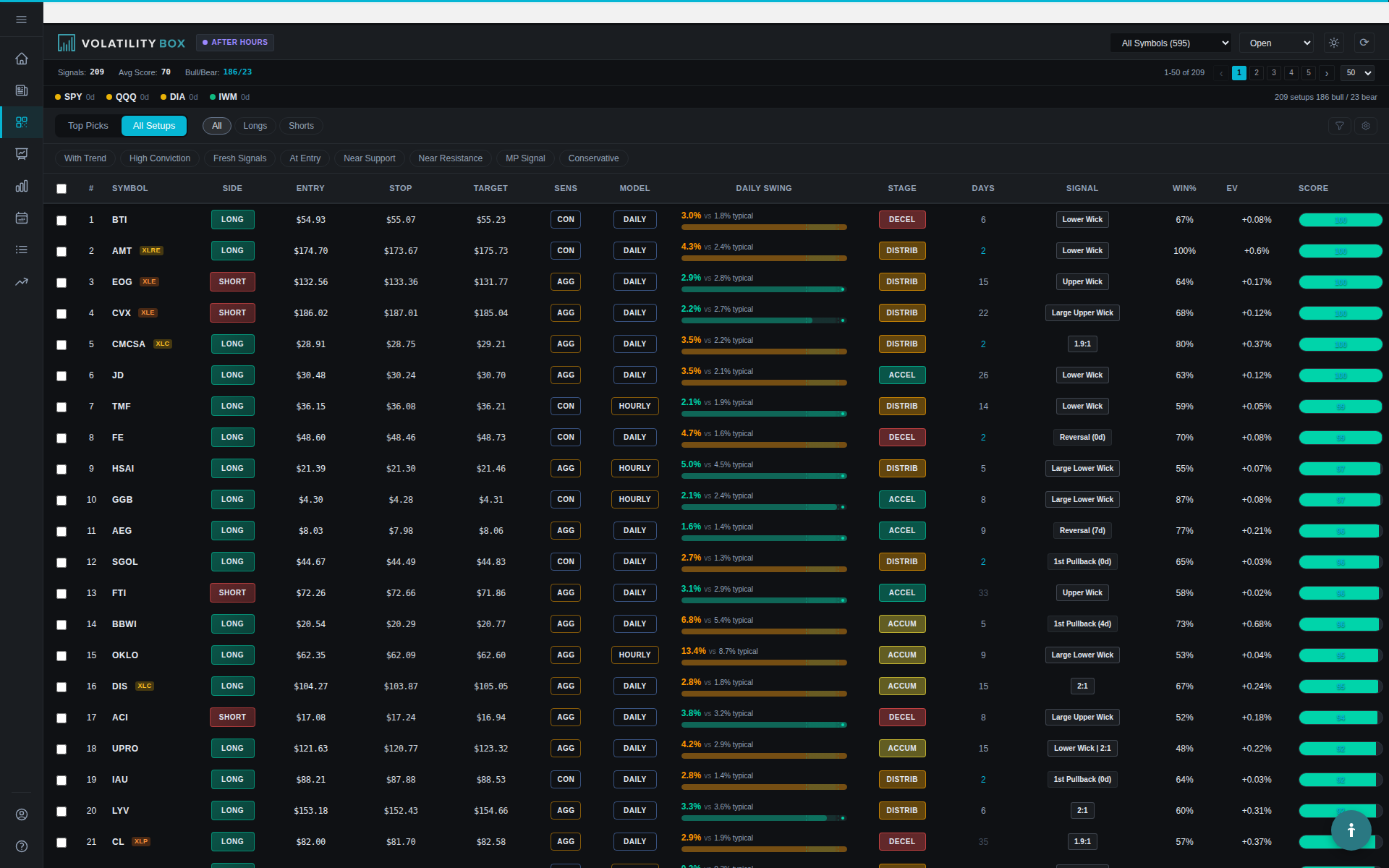
Step 1: Scanner Alert (2 seconds)
- Dashboard or Scanner shows new signal
- Quick check: Conviction 75+? Yes → Continue

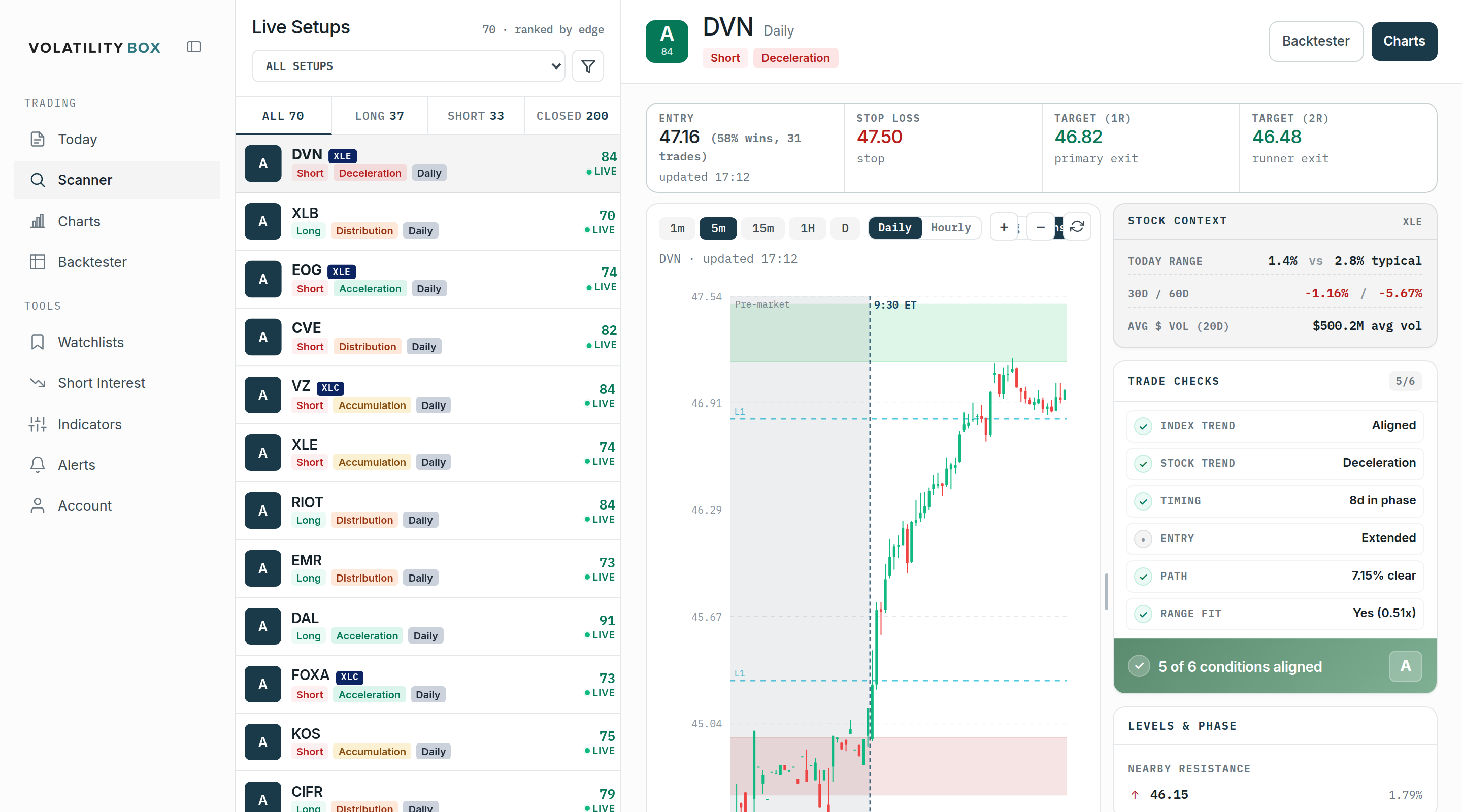
Step 2: Symbol Page Quick Glance (5 seconds)
- Click symbol in Scanner table (opens Symbol Page in new tab)
- Visual check: Is price at VB entry level? Yes → Continue
- Quick look at recent performance: Last 3 trades profitable? Bonus confidence
Step 3: TOS Chart Verification (8 seconds)
- Switch to TOS monitor
- Check if price is at VB level on live chart
- Verify volume is present (not dead air)
- Confirm no major resistance/support in the way

Step 4: Order Entry (10 seconds)
- Switch to broker order ticket
- Enter symbol (auto-populates price)
- Enter share quantity (pre-calculated based on risk)
- Set stop loss at VB stop level
- Set profit target at VB target level
- Submit order
Step 5: Screenshot and Log (5 seconds)
- Hit screenshot hotkey (Win+Shift+S or Mac Cmd+Shift+4)
- Capture Scanner entry for journal
- Quick note in journal: “AAPL LONG 180.50, Conv 82, Power Hour”
Total time from signal discovery to filled order: 30 seconds. This streamlined process ensures you get the best possible fills at Volatility Box entry levels before the move begins. With practice and refinement, some traders can execute even faster, but 30 seconds is a realistic and achievable target for most active traders using this systematic approach.
Keyboard Shortcuts and Hotkeys
Setting up keyboard shortcuts saves precious seconds on every trade and eliminates the need to hunt for buttons with your mouse. Learn these shortcuts and use them consistently until they become automatic reflexes. The time saved compounds over dozens of trades per week, giving you better fills and less stress during execution.
VB Platform Shortcuts
| Action | Shortcut |
|---|---|
| Open Dashboard | Ctrl+D (Cmd+D on Mac) |
| Open Scanner | Ctrl+S |
| Refresh Scanner | F5 or Ctrl+R |
| Open Symbol Page | Click symbol name in table |
| Toggle Dark Mode | Ctrl+Shift+D |
Browser Shortcuts
| Action | Shortcut |
|---|---|
| New Tab | Ctrl+T (Cmd+T) |
| Close Tab | Ctrl+W (Cmd+W) |
| Switch Tabs | Ctrl+Tab |
| Reopen Closed Tab | Ctrl+Shift+T |
ThinkorSwim Shortcuts
| Action | Shortcut |
|---|---|
| Open Chart | Ctrl+O |
| Add Study | Ctrl+Shift+E |
| Change Symbol | Type symbol and hit Enter |
| Screenshot | Ctrl+Alt+P |
Pre-Session Setup Routine (5 Minutes)
Complete this routine before market open every single day to ensure fast execution during live trading hours when opportunities arise. The pre-session setup eliminates the chaos of opening windows and logging into platforms while the market is moving. By having everything ready before 9:30 AM, you can focus entirely on execution rather than setup tasks.
Daily Setup Checklist
- 9:15 AM: Open VB Dashboard and let it load
- 9:18 AM: Open Scanner with your saved filter preset (e.g., “Power Hour”)
- 9:20 AM: Open TOS and load your VB watchlist charts
- 9:22 AM: Open broker platform and log in
- 9:25 AM: Pre-populate order ticket with default share size
- 9:28 AM: Review Dashboard for pre-market gaps and signals
- 9:30 AM: Market open, ready to execute
Scanner Filter Presets for Different Sessions
Save filter presets for each trading session so you don’t waste valuable time adjusting filters during live market hours. Creating these presets in advance means you can switch between different trading strategies with a single click. This preparation allows you to focus on trade execution rather than configuration when opportunities appear in the scanner.

Preset 1: Opening Bell Scalp
- Model: Hourly Aggressive
- Conviction: 70+
- Direction: Both
- Volume: 2M+ daily
- MP Alignment: Any
- Status: Open
Preset 2: Trend Following Swing
- Model: Daily Conservative
- Conviction: 80+
- MP Alignment: WITH
- MP Signal Type: FP, TC
- Watchlist: S&P 100
Preset 3: Power Hour Momentum
- Model: Hourly Aggressive, Daily Aggressive
- Conviction: 75+
- MP Alignment: WITH
- MP Color: Green, Yellow
- Time: After 3:00 PM
Set these filter presets up on Sunday evening so they’re ready to use Monday morning without any last-minute scrambling. This advance preparation is part of professional trading discipline and separates successful traders from those who struggle with consistency and execution quality.
Trade Execution Flow Diagram
Understanding and internalizing this execution flow creates consistent, repeatable results that improve with practice. Each step flows naturally into the next, creating a seamless process from signal discovery to filled order. Visualize this flow before each trading session to reinforce the pattern and improve execution speed.
Dashboard Alert
↓
Scanner Table (Conviction Check)
↓
Symbol Page (Price at VB Entry?)
↓
TOS Chart (Visual Confirmation)
↓
Broker Order Entry
↓
Order Filled
↓
Screenshot + Journal Entry
Efficiency Tips and Best Practices
Small optimizations in your workflow compound over time to create significant improvements in execution quality and speed. These efficiency tips eliminate friction points and decision-making during live trading when you need to act decisively. Implement these practices one at a time until they become habitual parts of your trading routine.
Pre-Calculate Position Sizes
Never calculate share size during live trading when emotions are high and opportunities are fleeting. Instead, create a position sizing cheat sheet based on common stop distances for your account size. Laminate this sheet and keep it next to your monitor for instant reference, or memorize the most common calculations for lightning-fast execution.
| Stop Distance | Shares (1% risk on $50k account) |
|---|---|
| $0.50 | 1,000 shares |
| $0.75 | 667 shares |
| $1.00 | 500 shares |
| $1.50 | 333 shares |
| $2.00 | 250 shares |
With this reference, you can do quick mental math: “Stop is $1.20 away, so approximately 420 shares keeps me at 1% risk.” This instant calculation eliminates a major source of execution delay and allows you to enter positions at optimal prices.
Use Bracket Orders
Most brokers allow bracket orders where you can set entry, stop loss, and profit target in a single order ticket. Set this up once with your typical parameters, and execution becomes much faster during live trading. This approach ensures your stops and targets are placed immediately when your entry fills, protecting you even if you’re momentarily distracted.
Keep a Trading Journal Template Open
Have a Google Sheet or Excel file open with today’s date already populated, ready for quick trade logging. Use a simple format that captures essential information without slowing you down. The easier you make journaling, the more likely you are to do it consistently, and the better your long-term improvement will be.
| Time | Symbol | Direction | Entry | Stop | Target | Conv | Notes |
|---|---|---|---|---|---|---|---|
| 9:35 | AAPL | LONG | 180.50 | 179.80 | 182.00 | 82 | Opening Bell |
Browser Tab Organization
Pin your most-used tabs in your browser so they’re always accessible and can’t be accidentally closed. This simple organization trick saves time and prevents the frustration of having to re-navigate to key pages during trading hours. Keep other tabs to a minimum to reduce clutter and improve mental clarity.
- Tab 1 (pinned): VB Dashboard
- Tab 2 (pinned): Volatility Box Scanner
- Tab 3+: Symbol Pages (open as needed, close after trade)
Performance Tracking and Screenshots
Documenting every trade visually creates an invaluable learning resource for reviewing your execution and decision-making. Screenshots capture the exact market context and signal characteristics at the moment you entered, providing objective evidence for later analysis. This visual journal reveals patterns you’d never notice from numbers alone and accelerates your improvement dramatically.
Screenshot System
- Pre-Entry: Screenshot Scanner table showing signal (timestamp visible)
- Entry: Screenshot TOS chart at entry with VB studies visible
- Exit: Screenshot TOS chart at exit showing P/L

Store screenshots in organized folders by date and symbol for easy retrieval and review. Use a naming convention like: 2025-01-18/AAPL-LONG-0935/ to make finding specific trades effortless during your weekly review sessions.
Why Screenshots Matter
- Visual proof of entry reasoning
- Pattern recognition over time (“I always lose when price gaps through entry”)
- Dispute resolution with broker if needed
- Training tool: Review winners and losers
Common Workflow Mistakes to Avoid
Understanding common mistakes helps you avoid them and develop better habits from the beginning. These errors seem minor in isolation but accumulate to create significant performance drag over time. Be ruthlessly honest about which of these mistakes you’re currently making and commit to eliminating them one by one.
- Over-analysis: Don’t spend 5 minutes analyzing a 5-minute scalp. If conviction is 80+, trust it
- Filter tweaking during live hours: Set filters pre-market, don’t adjust during trading
- Missing screenshots: Take them immediately, not “after this trade”
- No pre-session setup: Opening tabs during live hours wastes precious time
- Chasing entries: If you miss entry by >0.20%, wait for next signal (don’t FOMO)
Summary: Workflow Optimization Checklist
- Set up multi-monitor layout (or virtual desktops)
- Create scanner filter presets for each session
- Pre-calculate position sizes (cheat sheet)
- Learn keyboard shortcuts for VB, browser, TOS
- Complete 5-minute pre-session setup routine
- Follow 30-second execution workflow (Dashboard → Scanner → Symbol Page → TOS → Broker)
- Use bracket orders for faster execution
- Pin VB Dashboard and Scanner tabs
- Screenshot every trade (pre-entry, entry, exit)
- Avoid over-analysis and trust high-conviction signals
Speed is a genuine competitive advantage in signal-based trading where optimal entry prices matter significantly. Optimize your workflow systematically and you’ll catch better fills, execute more high-quality signals, and trade with less stress and greater confidence. The difference between a 30-second execution and a 2-minute execution is often the difference between a winning trade at the ideal entry level and a mediocre trade that you chase into with worse risk-reward.
Was this article helpful?
Still need help?
Can't find what you're looking for? Our support team is here to help.
Contact Support