Weekly Indicator Updates
Why Weekly Updates Matter
VB indicators are based on statistical calculations that change every week. Each Sunday, the VB platform recalculates all volatility bands based on the past week’s data. These recalculations account for changing market conditions, volatility shifts, and momentum changes from the previous trading week.

If you’re using last week’s studies on Monday morning, your entry, stop, and target levels will be incorrect. During high-volatility weeks the difference can be significant, leading to stops that are too tight or targets that are unrealistic. In stable conditions the variance might be minimal, but during earnings season or major economic events, outdated levels can result in poor trade execution and unnecessary losses.
The Sunday Ritual
The weekly update takes about five minutes and ensures you’re trading with accurate levels for the week ahead. That time protects you from stale data that could cost far more in lost opportunities or avoidable losses.
Wait until the platform’s weekly auto-generation completes on Sunday. Log into the VB platform and navigate to the Indicator Generator section. Download either the pre-generated bundle for instant access to popular symbols, or generate custom studies for your specific watchlist. Import the downloaded files to ThinkorSwim desktop using the bulk import feature. Finally, verify the week range displayed on the studies matches the current trading week to confirm the import succeeded.
Once complete, you’re ready for Monday’s market open with the most current volatility calculations and statistical levels.
Pre-Generated Bundle vs Custom Generation
Pre-Generated Bundle
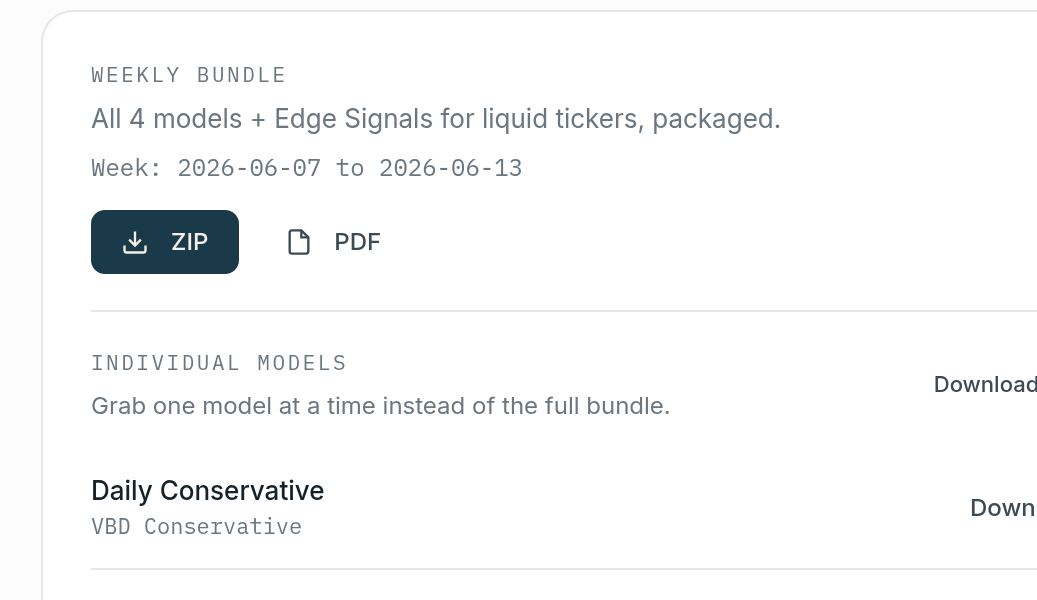
The platform automatically generates studies for a set of highly liquid, popular stocks every Sunday. This bundle covers the most actively traded names, so you never miss signals on the symbols traders watch most. The pre-generated approach saves time and ensures broad coverage without manual generation.
The main advantage is one-click download of all four study types: VBH Aggressive, VBH Conservative, VBD Aggressive, and VBD Conservative for each symbol. These studies are available with no generation wait time, giving you comprehensive coverage of the most liquid names. Downloading the complete bundle delivers all four study types for every included symbol in one step.
To download, navigate to Indicator Generator, select Pre-Generated Bundle, then click Download All to receive the complete package in a single zip archive.
Custom Generation from Watchlists
If you trade a focused watchlist of 10-20 symbols, custom generation gives you only what you need without cluttering your ThinkorSwim workspace. This works well for traders who specialize in specific sectors or run a concentrated portfolio. You maintain a cleaner study library and spend less time navigating hundreds of symbols you never trade.
Select your saved watchlist in the Indicator Generator interface, click the Generate Studies for Watchlist button, and wait 10-15 seconds for the server to calculate all studies for your symbols. Once generation completes, download the zip file containing only your watchlist studies. This keeps your TOS workspace organized with exactly the symbols you trade, making it faster to locate and apply the correct studies during market hours.
Bulk Import to ThinkorSwim
ThinkorSwim supports selecting multiple files at once, so bulk imports are straightforward. It handles large study imports efficiently, letting you update hundreds of studies in seconds rather than one at a time.
Unzip the downloaded file to a folder on your local drive, such as VB_Studies_2025-01-20, naming the folder by date for easy reference. Open ThinkorSwim desktop and navigate to Charts, then Studies, then Edit Studies, and finally Import to open the file selection dialog. Navigate to your unzipped folder and select all ts files using Shift+click to highlight the entire range. Click Open to import all selected files at once, and TOS will process the batch automatically.
ThinkorSwim displays a confirmation message once the process completes. The platform automatically replaces studies with matching names, so if you imported last week’s AAPL_VBH_Aggressive study, this week’s version overwrites it without creating duplicates. This means you don’t need to manually delete old studies before importing new ones.
Replacing Old Studies
You don’t need to manually delete old studies before importing new ones, because TOS handles replacement automatically based on study names. The platform uses the exact study name as the unique identifier, so any incoming study with a matching name overwrites the existing version. This keeps you working with the most recent calculations without accumulating duplicate or outdated studies.
If you do want to clean up your library and remove orphaned or unused studies, the process is simple. Navigate to Studies, then My Studies to view your complete library. Sort the list by Date Modified to group studies chronologically and spot older versions. Select all studies older than seven days by clicking the first old study, holding Shift, and clicking the last old study in the range. Then click Delete to remove them. This cleanup helps if you’ve used VB for several months and want to keep the library organized.

Verification: Checking the Week Range
After importing, verify the studies display the correct week range before you begin trading. This step takes less than 30 seconds and prevents costly errors from trading with outdated levels. Confirming the date range tells you the import completed and you’re viewing the most current statistical calculations.
Apply one study to a chart and examine the label on the chart interface. It will show something like AAPL VBH Aggressive – Valid: 01/20/25 – 01/24/25. This label contains three pieces of information: the symbol (AAPL), the model type (Hourly Aggressive), and the valid week range (January 20-24, 2025). The valid week should match the current trading week ahead.
If the label shows last week’s date range, the import didn’t work and you’re viewing outdated levels. Close ThinkorSwim completely, re-download the studies from the VB platform to make sure you have the correct files, and attempt the import again. Don’t trade until the date range matches the current week, since old levels can significantly impact your performance.
File Management and Organization
A simple folder structure for your VB studies makes it easy to track versions and troubleshoot discrepancies. It also lets you roll back to previous weeks to verify historical signals or investigate unexpected study behavior. A consistent naming convention prevents confusion and saves time during your weekly routine.
A recommended structure uses date-stamped directories like VB_Studies with subfolders for each week: 2025-01-13 for historical reference, 2025-01-20 for the current active week, and 2025-01-27 pre-created for the upcoming week. This organization lets you quickly identify which study set you’re working with and keeps a short-term archive of recent weeks. The dated folder names use YYYY-MM-DD format, which sorts properly and removes ambiguity about which Monday starts each trading week.
After four weeks have passed, delete the oldest folder to keep the directory manageable. There’s no need to keep six months or a year of historical study files, since you can regenerate past weeks from the VB platform if you need them for analysis. This rolling four-week archive balances recent history for troubleshooting against unnecessary file accumulation.
What If I Miss the Update
If you forget to update on Sunday and trade Monday morning with old studies, your entry, stop, and target levels will be slightly off from the current week’s values. The degree of error depends on how much volatility changed between weeks, which helps you decide whether to pause and update immediately or continue with slightly outdated levels.
During stable weeks when volatility holds steady, the difference might be minimal, typically $0.10-0.30 per level on most stocks. That small variance may not significantly affect your outcomes, especially on lower-priced securities. During volatile periods like earnings season, FOMC announcements, or major economic releases, the difference can reach $1-2 per level on high-priced stocks like TSLA or NVDA. These larger gaps can cause stops to be hit prematurely or targets to be set unrealistically.
If you missed the Sunday update, run it Monday morning before the open rather than trading with incorrect levels all week. Taking 30 minutes to download and import the correct studies beats making poor decisions on stale data for five straight trading days. Set a recurring calendar reminder for Sunday so you don’t miss the window again.
Mobile TOS Sync
ThinkorSwim mobile does not automatically sync custom studies from your desktop installation, which surprises traders who expect cloud synchronization across devices. The mobile and desktop versions maintain separate study libraries, so you must manually import study files to the mobile app to use VB indicators on your phone or tablet. This is a TOS platform design decision rather than a VB-specific issue, and it affects all custom studies regardless of source.
To import studies to mobile, transfer the ts files to your device using email, cloud storage like Dropbox or Google Drive, or direct file transfer if your device supports it. Once the files are accessible, open them with the TOS mobile app, which recognizes the file format and prompts you to import. Confirm the import and the studies are added to your mobile library, available for chart application just like on desktop.
Most traders skip the mobile study import entirely and use the VB web scanner for entries when away from their desk. The mobile-optimized web scanner provides all the signal information you need, including entry, stop, and target levels, without installing custom studies on your phone. This is simpler, always reflects the most current data, and removes the weekly mobile import while still giving you full access to VB signals from anywhere.
Next Steps
Once your studies are updated and verified for the week, spend another 10 minutes Sunday evening reviewing the market landscape for the week ahead. This review helps you identify high-probability setups early, set appropriate alerts, and prepare for the opportunities you’re likely to see. Pairing your study update with market prep creates a complete Sunday routine.
Check the VB Dashboard for current market bias signals to see whether the broad market is showing bullish, bearish, or neutral tendencies. Review Market Pulse signals for all symbols on your watchlist to identify which stocks are setting up for potential trades. Note any earnings announcements or economic data releases scheduled for the week, since these events can create volatility and opportunity around specific symbols. Set price alerts on your high-conviction symbols so you’re notified the moment potential setups develop during market hours.
This 15-minute Sunday routine, combining the 5-minute study update with 10 minutes of market review, sets you up for a well-prepared trading week. The small time investment compounds over weeks and months, keeping you ready for the best opportunities the market presents.
Was this article helpful?
Still need help?
Can't find what you're looking for? Our support team is here to help.
Contact Support