Generate TOS Studies
Why ThinkorSwim Integration Matters
The VB Platform Scanner gives you entry, stop, and target prices for every signal. But if you’re executing trades in ThinkorSwim, you want to see those levels plotted directly on your charts for visual confirmation and precise entry timing.
The Indicator Generator creates custom .ts study files that plot VB levels on ThinkorSwim charts. Once installed, you’ll see upper and lower bands, support/resistance levels, and target zones right alongside price action.
This guide explains what gets generated, how the auto-generation works, and how to create custom studies for your watchlist symbols. This is an important aspect of using the platform effectively.
What Gets Generated: The 4-Study Bundle
For each symbol, the Indicator Generator creates four separate .ts study files:
- VBH Aggressive (Hourly Aggressive): Tighter bands for scalping and day trading
- VBH Conservative (Hourly Conservative): Wider bands for day trading with more confirmation
- VBD Aggressive (Daily Aggressive): Daily bands for 1-3 day swing trades
- VBD Conservative (Daily Conservative): Daily bands for 3-5+ day swing trades
Each study file contains: This is an important aspect of using the platform effectively. This information is valuable for understanding how to use the platform more effectively.
- Upper VB band (resistance/long entry level)
- Lower VB band (support/short entry level)
- Target projection lines
- Labels showing current band values
You choose which study to apply based on your trading timeframe. Day traders use VBH studies, swing traders use VBD studies.
Weekly Auto-Generation: Sunday 12 PM PT
What happens: Every Sunday at 12:00 PM Pacific Time, the platform automatically generates fresh VB studies for the upcoming week This is an important aspect of using the platform effectively. This information is valuable for understanding how to use the platform more effectively.
Coverage: The pre-generated bundle includes 150 liquid stocks across major indices: This is an important aspect of using the platform effectively. This information is valuable for understanding how to use the platform more effectively.
- Full S&P 100
- Top volume Nasdaq stocks
- Popular ETFs (SPY, QQQ, IWM, DIA, etc.)
- High-momentum names based on recent activity
File count: 150 symbols × 4 studies = 600 .ts files ready to download
Why Sunday generation? VB bands are calculated based on recent price ranges and volatility. Generating fresh studies on Sunday ensures the bands reflect the most current market conditions for the week ahead, including any significant Friday close or weekend gap activity.
How to Access Pre-Generated Studies
- Log in to VB Platform on Sunday afternoon or Monday morning
- Navigate to Indicator Generator page
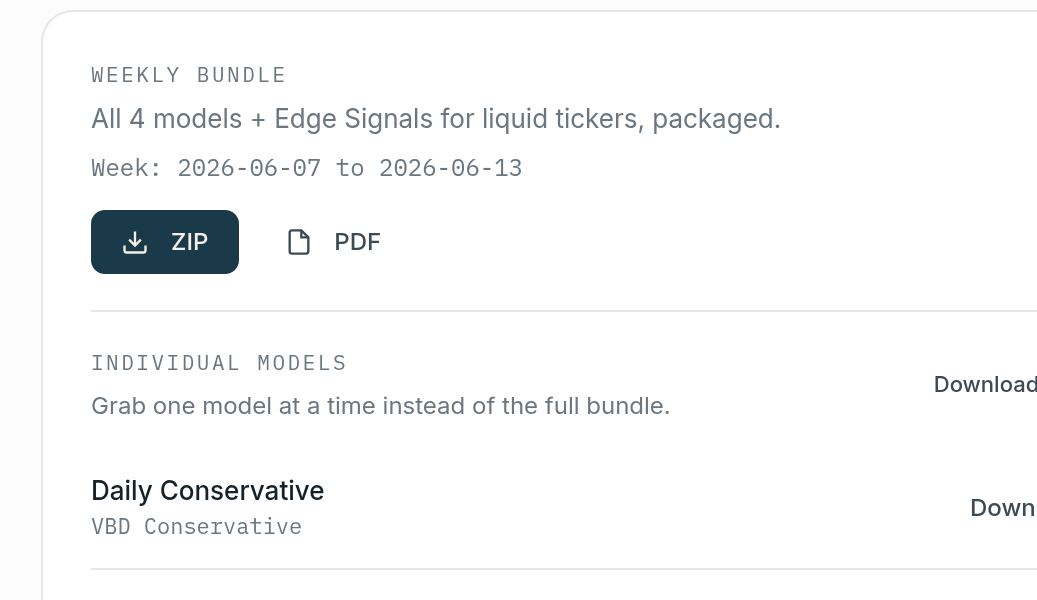
- Look for “Download Pre-Generated Bundle” button
- Click to download a .zip file containing all 600 studies
- Extract the .zip to a folder on your computer
- Import into ThinkorSwim (covered in separate installation article)
This is the fastest way to get VB studies for popular symbols without manual generation. This is an important aspect of using the platform effectively.
Custom Generation for Watchlist Symbols
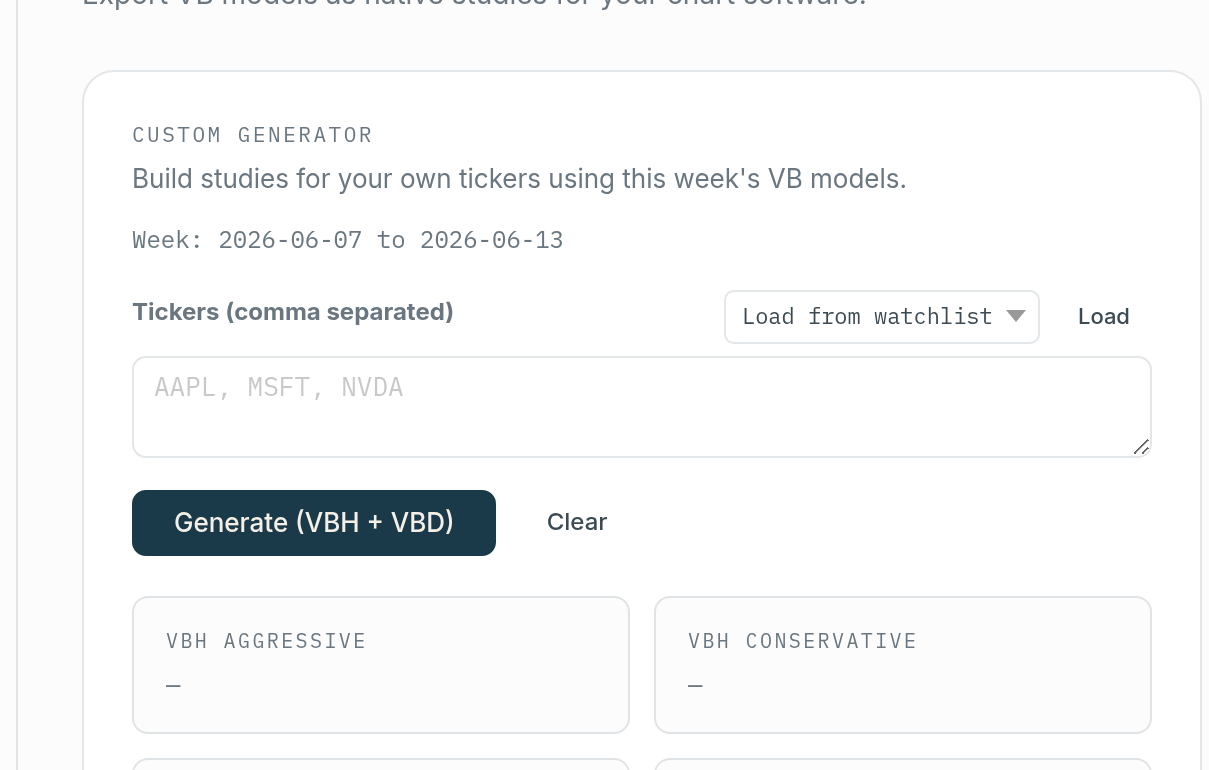
If you trade symbols not included in the 150 pre-generated stocks, you can create custom studies: This is an important aspect of using the platform effectively. This information is valuable for understanding how to use the platform more effectively.
Single Symbol Generation
- Go to Indicator Generator page
- Enter symbol in the search box (e.g., “AMD”)
- Click “Generate Studies”
- Platform creates 4 .ts files for that symbol
- Click “Download” to save files to your computer
Processing time: 5-10 seconds per symbol This is an important aspect of using the platform effectively. This information is valuable for understanding how to use the platform more effectively.
Bulk Watchlist Generation
If you have a custom watchlist of 10-20 symbols, you can generate all at once: This is an important aspect of using the platform effectively. This information is valuable for understanding how to use the platform more effectively.
- Create or select a watchlist in the Watchlist Manager (e.g., “My Tech Stocks”)
- Go to Indicator Generator
- Select your watchlist from the dropdown
- Click “Generate All Studies for Watchlist”
- Platform creates 4 studies × number of symbols (e.g., 15 symbols = 60 files)
- Download as a single .zip file
Processing time: 30-60 seconds for 10-15 symbols This is an important aspect of using the platform effectively. This information is valuable for understanding how to use the platform more effectively.
Pro tip: If you specialize in a small group of stocks (e.g., FAANG + SPY), create a watchlist and regenerate studies weekly. This ensures you always have current bands for your core symbols.
File Naming Structure
Generated study files follow this naming convention: This is an important aspect of using the platform effectively. This information is valuable for understanding how to use the platform more effectively.
[Symbol]_VBH_Aggressive_Week_[Date].ts
[Symbol]_VBH_Conservative_Week_[Date].ts
[Symbol]_VBD_Aggressive_Week_[Date].ts
[Symbol]_VBD_Conservative_Week_[Date].ts
Examples:
AAPL_VBH_Aggressive_Week_20250119.ts
AAPL_VBH_Conservative_Week_20250119.ts
AAPL_VBD_Aggressive_Week_20250119.ts
AAPL_VBD_Conservative_Week_20250119.ts
The date stamp shows which week the study was generated for. This helps you track which studies are current vs outdated.
Filename Stub Feature
If you want to organize studies by strategy or account, you can add a custom filename stub: This is an important aspect of using the platform effectively. This information is valuable for understanding how to use the platform more effectively.
- In Indicator Generator settings, add a stub (e.g., “DayTrade” or “IRA”)
- Generated files will include the stub:
AAPL_DayTrade_VBH_Aggressive_Week_20250119.ts
This is useful if you manage multiple ThinkorSwim accounts or share studies with a trading group. This is an important aspect of using the platform effectively.
What’s Inside a .ts Study File
When you open a .ts file in a text editor, you’ll see ThinkorSwim’s proprietary ThinkScript code. Here’s a simplified example:
declare upper;
input length = 20;
input numDevDn = -1.0;
input numDevUp = 1.0;
def price = close;
def middleBand = Average(price, length);
def upperBand = middleBand + numDevUp * StDev(price, length);
def lowerBand = middleBand + numDevDn * StDev(price, length);
plot UBand = upperBand;
plot LBand = lowerBand;
UBand.SetDefaultColor(GetColor(1));
LBand.SetDefaultColor(GetColor(2));
This script calculates: This is an important aspect of using the platform effectively. This mathematical approach removes subjectivity and provides consistent, repeatable analysis.
- A middle band (moving average of recent prices)
- Upper and lower bands based on volatility
- Plots the bands on the chart with color coding
VB studies use similar logic but with proprietary calculations for the specific model type (Aggressive vs Conservative, Hourly vs Daily). This is an important aspect of using the platform effectively.
Note: You don’t need to understand ThinkScript to use VB studies. Just import and apply them to charts.
Supported Symbols: 595 Total
The platform supports study generation for 590 symbols: This is an important aspect of using the platform effectively. This information is valuable for understanding how to use the platform more effectively.
- S&P 100: All 100 stocks
- Nasdaq 100: Full index constituents
- High Volume Stocks: 200+ actively traded names
- ETFs: SPY, QQQ, IWM, DIA, XLF, XLE, XLK, GLD, SLV, TLT, etc.
- Popular Momentum Stocks: TSLA, COIN, MSTR, GME, AMC, etc.
If you request a study for a symbol not in the 595 supported list, you’ll see an error message: “Symbol not supported for study generation.” Focus on the 595 liquid stocks where VB signals are most reliable.
Weekly Update Process: Best Practices
VB bands shift weekly as price ranges and volatility change. Here’s the recommended update workflow:
Sunday Evening Ritual
- 12:30 PM PT: Log in to VB Platform (30 minutes after auto-generation completes)
- Download pre-generated bundle or regenerate your custom watchlist
- Extract files to a dedicated folder (e.g., “VB Studies – Week of Jan 20”)
- Open ThinkorSwim desktop
- Import studies (bulk import from the folder)
- Replace old studies on your charts with the new week’s studies
- Verify that labels show correct week dates
Total time: 10-15 minutes This is an important aspect of using the platform effectively. This information is valuable for understanding how to use the platform more effectively.
Verification: Check Week Range on Studies
After importing, apply a study to a chart and look for the label in the upper-left corner. It should show:
VBH Aggressive - Week of Jan 20-26, 2025
If it shows an old date (e.g., Jan 13-19), you’re using outdated studies. Re-import the latest files.
File Management and Organization
Managing hundreds of .ts files can get messy. Here’s a clean organization strategy:
Folder Structure
Documents/
VB_Studies/
2025/
Week_Jan20/
AAPL_VBH_Aggressive_Week_20250119.ts
AAPL_VBH_Conservative_Week_20250119.ts
...
Week_Jan27/
AAPL_VBH_Aggressive_Week_20250126.ts
...
Archive old weeks in dated folders. Only keep the current week’s studies in ThinkorSwim’s active import directory.
Deleting Old Studies from ThinkorSwim
ThinkorSwim stores imported studies permanently until you delete them. Every few weeks:
- Open ThinkorSwim
- Go to Studies → Edit Studies
- Look for studies with old date stamps (e.g., “Week_Dec15”)
- Select and delete outdated studies
- Keep only current week + previous week (in case you need to reference recent levels)
This prevents clutter and ensures you’re always applying fresh studies to charts. Visual confirmation on charts helps validate the statistical signals and improves entry timing.
Mobile ThinkorSwim Considerations
Desktop studies sync to mobile: If you import VB studies on ThinkorSwim desktop, they’ll sync to ThinkorSwim mobile app (assuming you’re logged into the same account) This is an important aspect of using the platform effectively. This information is valuable for understanding how to use the platform more effectively.
Limitation: You cannot import .ts files directly on mobile. All imports must happen on desktop, then studies become available on mobile.
Mobile workflow:
- Import studies on desktop Sunday evening
- Studies sync overnight
- Monday morning, open ThinkorSwim mobile
- Add VB studies to charts from the Studies menu
Troubleshooting Common Issues
Issue: “Symbol not supported for study generation” This is an important aspect of using the platform effectively. This information is valuable for understanding how to use the platform more effectively.
Solution: The symbol is outside the 595 supported list. Use a similar liquid stock instead, or focus on Volatility Box platform signals without ThinkorSwim visual confirmation.
Issue: Studies won’t import into ThinkorSwim This is an important aspect of using the platform effectively. This information is valuable for understanding how to use the platform more effectively.
Solution: Ensure files have .ts extension (not .ts.txt). Check that files were extracted from .zip correctly. Try importing one file at a time to isolate the problem.
Issue: Studies show wrong date range This is an important aspect of using the platform effectively. This information is valuable for understanding how to use the platform more effectively.
Solution: You downloaded an old week’s bundle. Go back to Indicator Generator and download the latest pre-generated bundle or regenerate your watchlist.
Issue: Bands don’t match Scanner entry/stop prices exactly This is an important aspect of using the platform effectively. This information is valuable for understanding how to use the platform more effectively.
Solution: VB levels self-adjust during the hour as new highs/lows form. The Scanner shows real-time breach levels, while ThinkorSwim studies plot projected bands. Small discrepancies (a few cents) are normal. Use Scanner prices as official entry/stop/target.
Do You Need ThinkorSwim Studies?
ThinkorSwim integration is optional. You can successfully trade VB signals without studies by:
- Using Scanner entry/stop/target prices directly
- Verifying setups on VB Platform Symbol Pages
- Executing in any broker (Interactive Brokers, TradeStation, Robinhood, etc.)
When studies are most valuable: This is an important aspect of using the platform effectively. This information is valuable for understanding how to use the platform more effectively.
- You’re a ThinkorSwim user and want visual confirmation on your execution platform
- You’re a discretionary trader who uses chart patterns alongside VB levels
- You want to see VB bands in real-time as they adjust during the trading day
When studies are less critical: This is an important aspect of using the platform effectively. This information is valuable for understanding how to use the platform more effectively.
- You’re a mechanical trader who executes Scanner signals at exact prices
- You use a different broker and don’t plan to switch to ThinkorSwim
- You prefer the Scanner + Symbol Page workflow without additional tools
Key Takeaways
- Indicator Generator creates .ts study files for ThinkorSwim: 4 studies per symbol (VBH Aggressive, VBH Conservative, VBD Aggressive, VBD Conservative)
- Auto-generation runs every Sunday at 12 PM PT for 150 pre-selected liquid stocks
- Download the pre-generated bundle for quick access to popular symbols
- Use custom generation for watchlist symbols not in the pre-generated bundle
- Update studies weekly to ensure bands reflect current volatility and price ranges
- Organize files by week in dated folders to avoid using outdated studies
- Studies sync from ThinkorSwim desktop to mobile automatically
- ThinkorSwim integration is optional – you can trade VB signals without studies using Scanner prices
Next step: Read “How to Install VB Studies in ThinkorSwim Desktop and Mobile” to import and apply studies to your charts. Following this systematic approach ensures you do not skip critical steps in the process.
Was this article helpful?
Still need help?
Can't find what you're looking for? Our support team is here to help.
Contact Support