Documentation / Getting Started

Platform Navigation Guide

Last updated: January 1, 2025

Navigating the Volatility Box Platform Efficiently

The Volatility Box Platform is designed for speed and efficiency, but knowing where everything is and how to access it quickly makes a significant difference in your trading execution. This guide walks through the complete platform navigation, settings, and customization options so you can optimize your workflow.

Mastering navigation eliminates wasted time clicking through menus and helps you move seamlessly from signal discovery to execution. After reading this guide, you’ll be able to access any platform feature within seconds.

Main Navigation Menu

The left sidebar provides access to all platform sections. Here’s what each menu item does:

left sidebar navigation menu showing all main sections (dashboard, scanner, charts, indicator generator, backtester, wat
The main navigation sidebar gives you one-click access to every Volatility Box tool and feature.

Dashboard

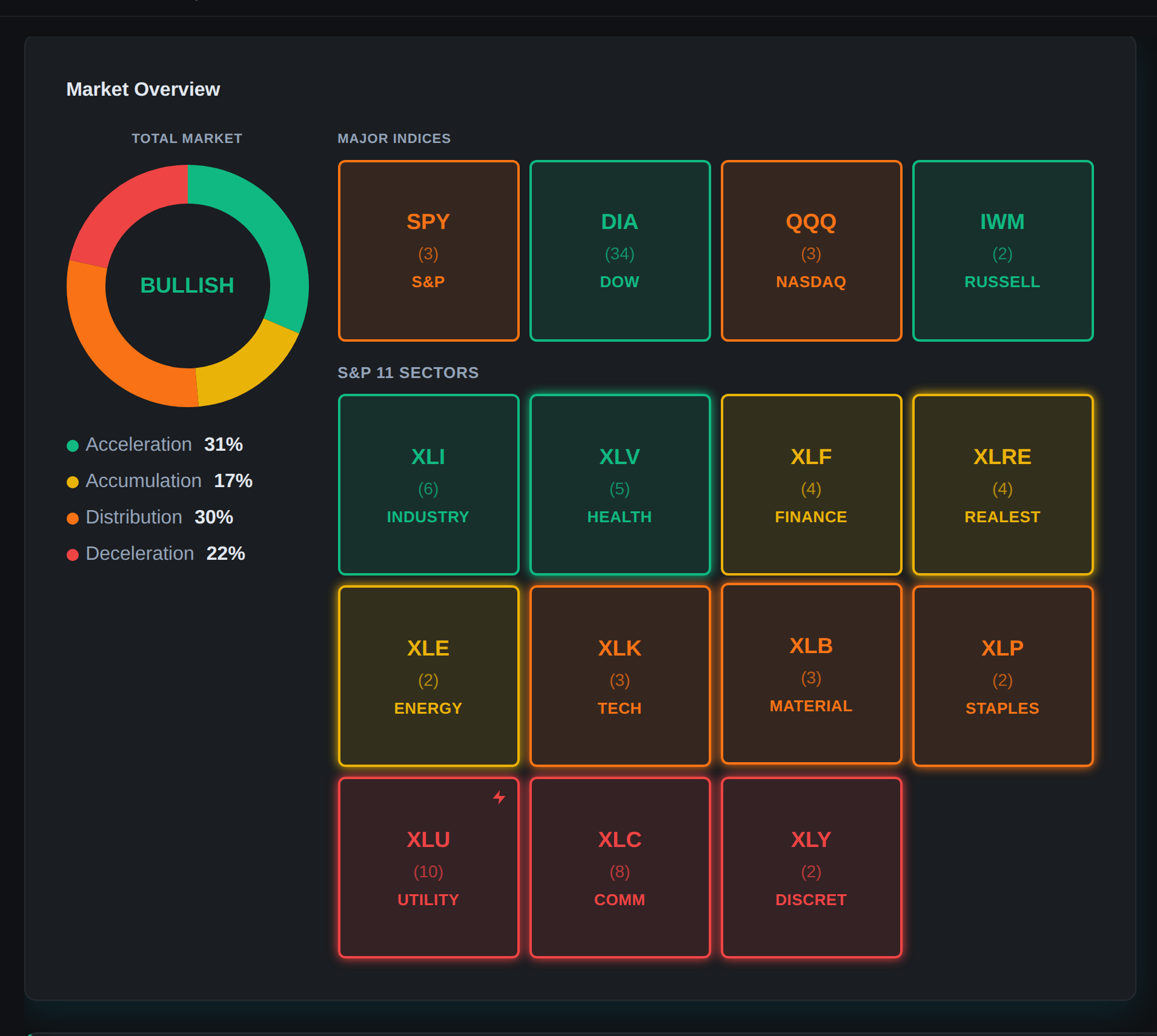
Your market command center showing:

  • Active signal counts (LONG vs SHORT)
  • Market bias visualization
  • Top conviction trades
  • Recent signal feed
  • Market Pulse summary

When to use: Start of every session to gauge market conditions and opportunity availability.

Scanner

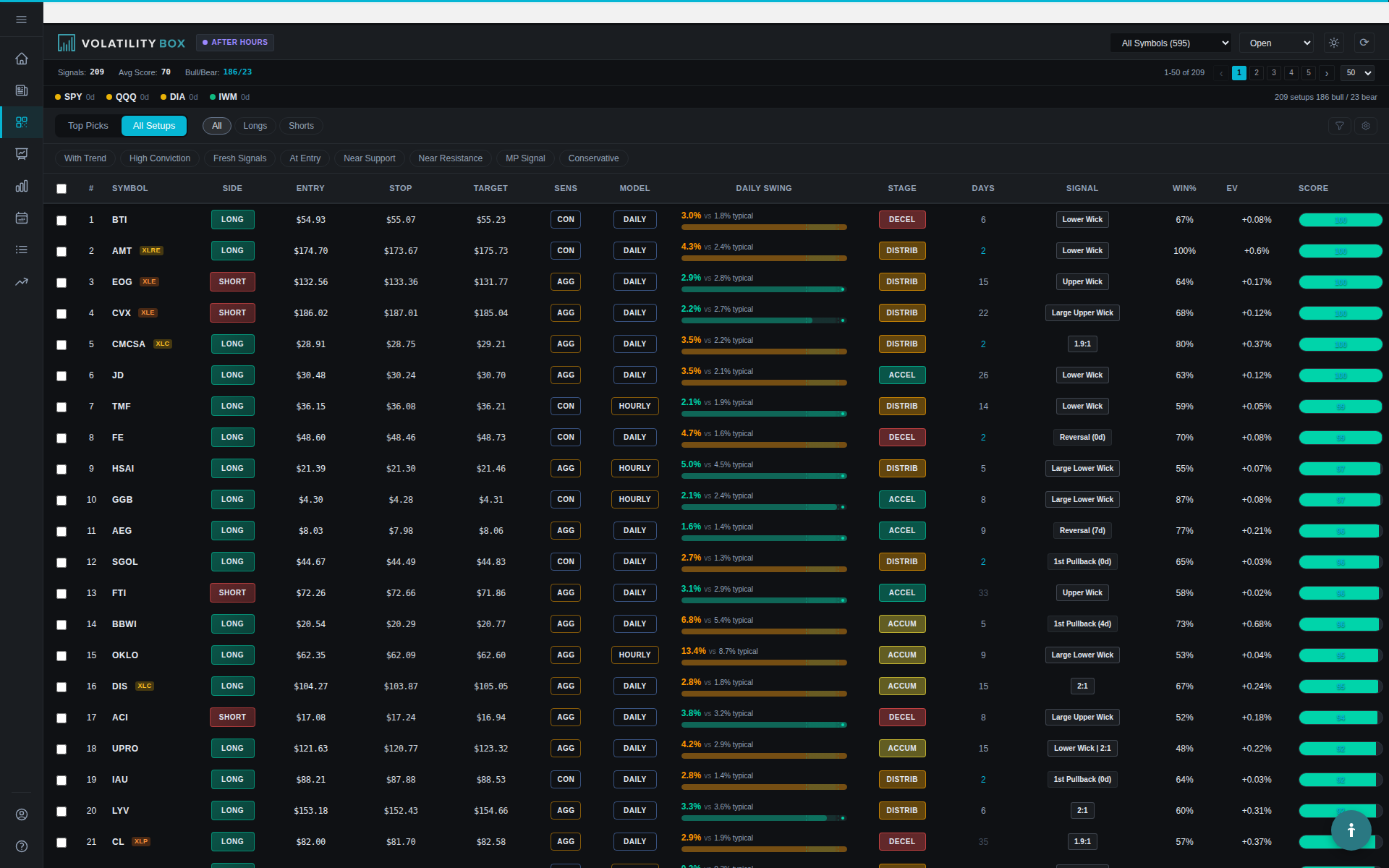
Primary tool for finding trades. Displays all active signals in filterable table format with:

  • Symbol and direction
  • Entry, stop, target prices
  • Conviction scores
  • Win rates and expectancy
  • Market Pulse indicators
  • Signal status

When to use: Continuously throughout the day to discover new opportunities and monitor active positions.

Charts

Browse symbol-by-symbol chart views showing:

  • Live price action with VB levels plotted
  • Multiple timeframe views
  • Market Pulse overlays
  • Recent signal history

When to use: Visual confirmation before entering trades, or monitoring existing positions.

Indicator Generator

Creates ThinkorSwim study files for your symbols:

  • Auto-generated indicators for 150 liquid stocks (updated weekly)
  • Custom indicator generation for any symbol
  • Download as .ts files for TOS import

When to use: Sunday evening to download fresh weekly indicators, or when adding new symbols to your watchlist.

Backtester

Historical performance validation showing:

  • Win rates and expectancy over time
  • Equity curves
  • Trade-by-trade breakdowns
  • Filter by date range, model type, signal type

When to use: Before trading a new symbol, or validating strategy changes.

Watchlists

Create and manage custom symbol lists:

  • Organize by strategy, sector, or preference
  • Add/remove symbols easily
  • Use in Scanner filters to focus on your symbols
  • Reserved lists: S&P 100 (pre-loaded, read-only)

When to use: Initial setup to create your core watchlist, then periodically to add new symbols or remove underperformers.

Short Interest

Scan for short squeeze candidates:

  • Short float percentages
  • Days to Cover calculations
  • VB signal confluence
  • Filter by short interest threshold

When to use: Weekly to identify potential squeeze setups, or when looking for high-momentum reversal plays.

Scanner: Deep Dive

Since you’ll spend most time in the Scanner, let’s explore its features in detail.

full scanner page showing the signal table with multiple active signals. include the filter panel on the left and the ma
The Scanner displays all active Volatility Box signals with conviction scores, entry/exit levels, and Market Pulse data.

Table Columns

Understanding each column helps you quickly evaluate signals:

Column What It Shows Why It Matters
Symbol Ticker and direction (LONG/SHORT) Identifies the opportunity
Model Which VB model triggered Indicates timeframe and hold period
Conviction 0-100 quality score Primary sorting/filtering metric
Entry Entry price level Where to buy/sell
Stop Stop loss price Risk management
Target Profit target price Exit planning
Win Rate Historical success % Probability assessment
Expectancy Avg $ per trade Profitability metric
MP Type Signal type (FP/TC/TR/ME/SP) Trade setup classification
MP Align WITH or AGAINST trend Trend confirmation
MP Color Green/Yellow/Orange/Red Trend strength
Status Open/Target/Stopped/EOD Position monitoring
Time When signal triggered Freshness indicator

Filter Panel

The filter panel lets you narrow signals to match your criteria. Key filters:

scanner filter panel expanded, showing all filter options including model type, direction, conviction slider, win rate,
The filter panel lets you narrow down signals by conviction, model type, direction, and Market Pulse alignment.

Model Type

  • Hourly Aggressive
  • Hourly Conservative
  • Daily Aggressive
  • Daily Conservative
  • Select multiple or “All”

Direction

  • LONG only
  • SHORT only
  • Both

Conviction Score

  • Slider or manual input
  • Set minimum threshold (e.g., 75+)

Win Rate

  • Minimum historical win rate %
  • Useful for filtering proven performers

Status

  • Open (active signals not yet resolved)
  • Target Hit (winners)
  • Stopped (losers)
  • EOD (closed without hitting target/stop)
  • All

Market Pulse Filters

  • MP Alignment: WITH, AGAINST, or Both
  • MP Color: Green, Yellow, Orange, Red, or All
  • MP Signal Type: FP, TC, TR, ME, SP, or All

Watchlist Filter

  • Select a saved watchlist to show only those symbols
  • “All Symbols” shows everything
  • Useful for focusing on your tracked stocks

Sorting

Click any column header to sort. Common sorting strategies:

  • By Conviction: Find highest-quality signals first
  • By Time: See newest signals (fresh opportunities)
  • By Win Rate: Focus on historically successful setups
  • By Symbol: Group same stocks together

Saving Filter Presets

Create and save filter combinations for quick access:

  1. Configure filters as desired
  2. Click “Save Preset” button
  3. Name your preset (e.g., “Day Trading High Conviction”)
  4. Preset now appears in dropdown for one-click loading

Recommended presets to create:

  • Day Trading (Hourly Aggressive, 75+ conviction, WITH, Open)
  • Swing Trading (Daily Conservative, 80+ conviction, WITH, FP/TC, Open)
  • Short Squeeze (All models, 70+ conviction, LONG, Yellow/Orange, HIGH short interest)
  • Review Completed (Status: Target/Stopped, Today’s date)

Symbol Pages

Clicking any symbol in the Scanner opens its dedicated Symbol Page. Here’s what you’ll find:

a symbol page for a popular stock (like aapl or tsla) showing the chart with vb levels plotted, signal summary panel, an
Each Symbol Page shows live charts with Volatility Box levels, the current signal details, and recent performance history.

Live Charts

  • Hourly chart with VB levels plotted
  • Daily chart with VB levels plotted
  • Current price indicator
  • Toggle between chart types

Signal Summary

  • Current active signal details (if any)
  • Entry, stop, target prices
  • Conviction breakdown by component
  • Market Pulse analysis

Recent Performance Table

  • Last 5-10 VB signals on this symbol
  • Shows entry, exit, outcome, P&L
  • Helps you see if symbol is hot or cold recently

Market Pulse Chart

  • 150-day trend visualization
  • Shows market stages (Accumulation, Mark-Up, Distribution, Mark-Down)
  • Color-coded trend strength

Quick Actions

  • “Add to Watchlist” button
  • “Generate Indicator” button (creates TOS study)
  • “Run Backtest” button (opens Backtester for this symbol)

Settings & Customization

Access settings via the gear icon in top-right corner.

settings page showing display settings, notification settings, and scanner defaults sections. capture the full settings
The Settings page lets you customize your theme, timezone, notification preferences, and default Scanner behavior.

Display Settings

  • Theme: Light or Dark mode
  • Time Zone: Select your local timezone for signal timestamps
  • Default View: Choose which page loads on login (Dashboard or Scanner)

Notification Settings

  • Email Alerts: Receive email when new high-conviction signals trigger
  • Conviction Threshold: Set minimum conviction for alerts (e.g., 85+)
  • Watchlist Alerts: Only alert for symbols in your watchlist

Scanner Defaults

  • Default Filters: Set which filters load when opening Scanner
  • Default Sort: Choose default column sort (e.g., Conviction descending)
  • Rows Per Page: 25, 50, or 100 signals per page

Keyboard Shortcuts

Speed up navigation with keyboard shortcuts:

Shortcut Action
D Open Dashboard
S Open Scanner
C Open Charts
R Refresh current page
F Focus on filter panel
Esc Clear all filters
1-9 Load filter preset 1-9
Arrow Keys Navigate table rows
Enter Open selected symbol page

Mobile Access

The platform is mobile-responsive for checking signals on the go:

  • Dashboard view optimized for mobile
  • Scanner table scrolls horizontally
  • Symbol Pages stack vertically
  • Touch-friendly filter controls

Best practices for mobile:

  • Use for monitoring existing positions, not initial discovery
  • Save filter presets on desktop, load quickly on mobile
  • Use watchlist filters to reduce table size
  • Avoid executing trades from mobile. Verify on desktop first

Workflow Optimization Tips

Tip 1: Keep Scanner in One Browser Tab, Symbol Pages in Others
Don’t navigate away from Scanner. Open Symbol Pages in new tabs (right-click symbol, “Open in New Tab”). This keeps Scanner state intact.

Tip 2: Use Multiple Saved Presets
Create presets for different strategies and times of day. Toggle between them instantly instead of manually adjusting filters each time.

Tip 3: Pin Your Most-Used Watchlist
If you always trade the same 20 symbols, set that watchlist as default filter. Scanner will always show only your symbols.

Tip 4: Organize Browser Bookmarks
Bookmark: Dashboard, Scanner (with preset loaded), Indicator Generator. Access with one click instead of navigating through site.

Tip 5: Use Dual Monitors
If possible, dedicate one monitor to the Volatility Box platform (Dashboard + Scanner), another to your broker/charts. This eliminates window switching.

Common Navigation Mistakes

Mistake 1: Not Saving Filter Presets
Manually configuring filters every session wastes 2-3 minutes daily. Save your presets once, load instantly forever.

Mistake 2: Closing Scanner Tab Accidentally
Losing Scanner state with all your filters is frustrating. Pin the Scanner tab in your browser to prevent accidental closure.

Mistake 3: Forgetting to Refresh
Scanner doesn’t auto-refresh. Hit “R” or click refresh button every 15-30 minutes to see new signals.

Mistake 4: Not Using Watchlist Filters
Scrolling through 40 signals to find your 10 tracked symbols is inefficient. Filter to your watchlist immediately.

Mistake 5: Overcomplicating Filters
Using 8+ filter criteria creates overly narrow results. Start with 3-4 key filters (Conviction, Status, MP Alignment) and add more only if needed.

Next Steps

Now that you understand platform navigation:

  1. Explore each main navigation section (Dashboard, Scanner, Charts, etc.)
  2. Create 2-3 Scanner filter presets for your trading style
  3. Set up your watchlist with 10-20 core symbols
  4. Customize settings (theme, timezone, notifications)
  5. Practice using keyboard shortcuts to speed up workflow
  6. Read “Futures vs Stock Volatility Box” if trading both markets

Efficient navigation saves minutes per session, which compounds to hours per month. Mastering the platform layout and shortcuts lets you focus on trading instead of clicking through menus, giving you a speed advantage in fast-moving markets.

Was this article helpful?

Still need help?

Can't find what you're looking for? Our support team is here to help.

Contact Support