Install TOS Studies
Overview: Getting VB Levels on Your Charts
Once you’ve generated VB study files (.ts files) from the Indicator Generator, you need to import them into ThinkorSwim and apply them to your charts. This guide walks through the complete installation process for both desktop and mobile platforms.
By the end of this tutorial, you’ll have VB bands plotted on your ThinkorSwim charts, giving you visual confirmation of entry, stop, and target levels alongside price action. Proper risk management using these levels is essential for long-term profitability.
Prerequisites
Before starting, make sure you have: This is an important aspect of using the platform effectively. This information is valuable for understanding how to use the platform more effectively.
- ThinkorSwim desktop application installed (download from TD Ameritrade/Schwab)
- VB study files downloaded from the Indicator Generator (.ts files saved to your computer)
- Files extracted from .zip if you downloaded the pre-generated bundle
Step 1: Download VB Study Files
- Log in to VB Platform
- Navigate to Indicator Generator
- Either download the pre-generated bundle (150 symbols) or generate custom studies for your watchlist
- Click “Download” to save files to your computer
- If downloaded as .zip, extract all .ts files to a folder (e.g., “VB_Studies_Jan20”)
You should now have a folder containing .ts files with names like:
AAPL_VBH_Aggressive_Week_20250119.ts
AAPL_VBH_Conservative_Week_20250119.ts
AAPL_VBD_Aggressive_Week_20250119.ts
AAPL_VBD_Conservative_Week_20250119.ts
Step 2: Import Studies into ThinkorSwim Desktop
Method 1: Individual File Import
- Open ThinkorSwim desktop application
- Click Studies in the top menu bar
- Select Edit Studies
- Click Import… button (lower left corner of the dialog)
- Navigate to your VB_Studies folder
- Select one .ts file (e.g., AAPL_VBH_Aggressive_Week_20250119.ts)
- Click Open
- ThinkorSwim imports the study and shows “Study imported successfully”
- Repeat for each .ts file you want to import
Time: 5-10 seconds per file This is an important aspect of using the platform effectively. This information is valuable for understanding how to use the platform more effectively.
Method 2: Bulk Import (Recommended)
- Open ThinkorSwim desktop
- Click Studies → Edit Studies
- Click Import…
- Hold Ctrl (Windows) or Cmd (Mac) and select multiple .ts files at once
- Click Open
- ThinkorSwim imports all selected files in sequence
Time: 30-60 seconds for 50-100 files This is an important aspect of using the platform effectively. This information is valuable for understanding how to use the platform more effectively.
Pro tip: Import all files from the pre-generated bundle on Sunday evening. Even if you don’t trade every symbol, having them available means you can quickly add studies to any chart without waiting for imports.
Verification: Check Imported Studies
After importing:
- In the Edit Studies dialog, click the Custom tab on the left sidebar
- You should see all imported VB studies listed alphabetically
- Look for entries like “AAPL_VBH_Aggressive_Week_20250119”
If you see your studies in the Custom list, import was successful. This is an important aspect of using the platform effectively.
Step 3: Apply Studies to Charts
Opening a Chart
- In ThinkorSwim, enter a symbol in the symbol search box (e.g., “AAPL”)
- Click Charts tab to open the charting interface
- Select your preferred timeframe (e.g., 5-minute for day trading, daily for swing trading)
Adding a VB Study to the Chart
- With the chart open, click Studies button (above the chart)
- Click Edit Studies
- In the left sidebar, click Custom tab
- Scroll to find the VB study you want (e.g., “AAPL_VBH_Aggressive_Week_20250119”)
- Double-click the study name to add it to the chart
- The study appears in the right panel (“Studies” applied to chart)
- Click OK to close the dialog
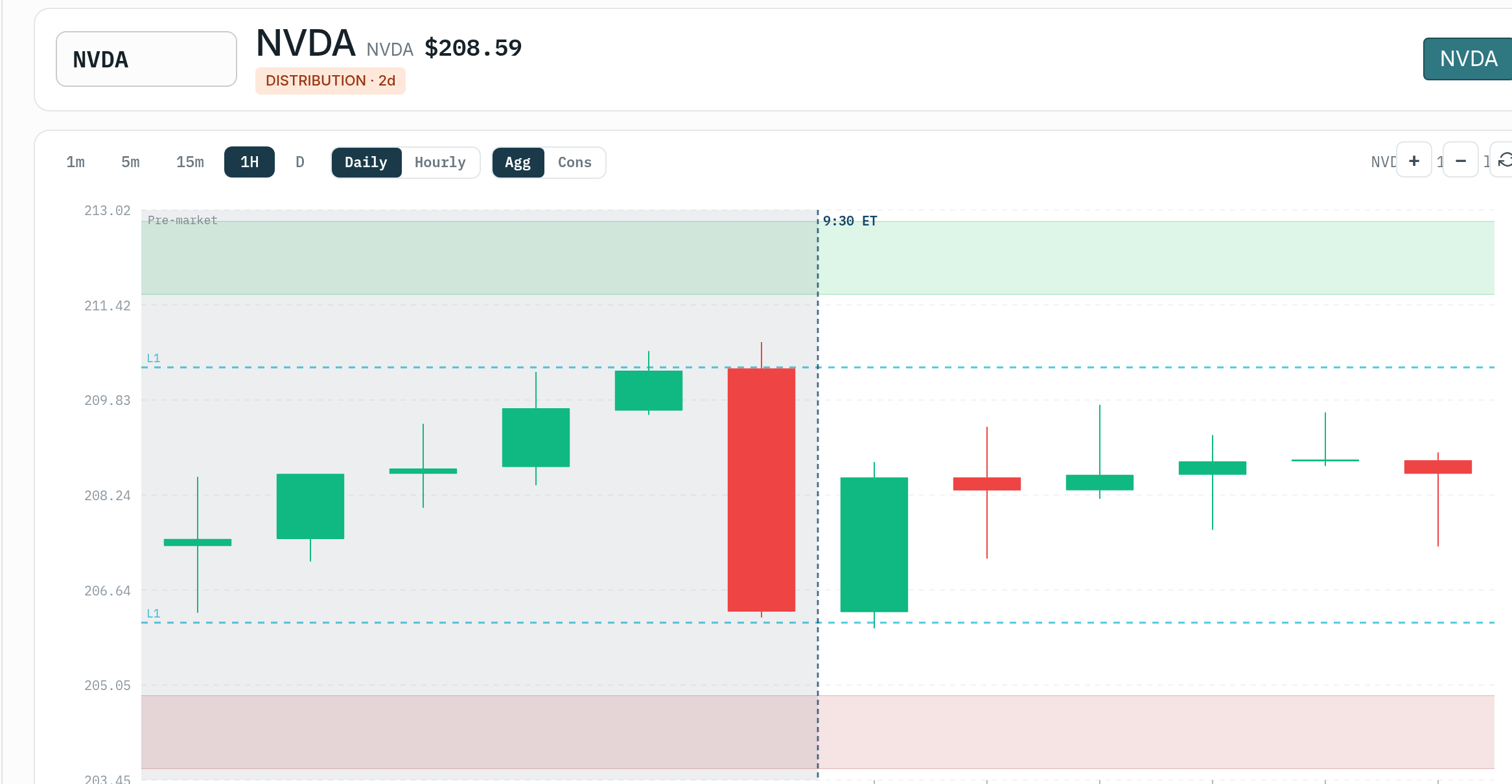
The chart now displays VB bands (upper and lower lines) plotted over price action. This visualization makes it easy to understand the data at a glance.
Which Study to Apply?
For day trading (hold 30 min – 6 hours): This is an important aspect of using the platform effectively. This information is valuable for understanding how to use the platform more effectively.
- Use VBH Aggressive for scalping with tighter bands
- Use VBH Conservative for day trading with wider stops
- Apply to 5-minute or 15-minute charts
For swing trading (hold 1-5 days): This is an important aspect of using the platform effectively. This information is valuable for understanding how to use the platform more effectively.
- Use VBD Aggressive for 1-3 day swings
- Use VBD Conservative for 3-5+ day swings
- Apply to daily charts
Example: If you’re scalping AAPL on a 5-minute chart, apply AAPL_VBH_Aggressive. If you’re swing trading AAPL on a daily chart, apply AAPL_VBD_Conservative.
Step 4: Customize Study Appearance
Once a study is applied, you can customize colors, line styles, and labels: This is an important aspect of using the platform effectively. This information is valuable for understanding how to use the platform more effectively.
- Click Studies → Edit Studies
- In the right panel (studies applied to chart), find your VB study
- Click the gear icon next to the study name
- In the customization dialog:
- Change upper band color (e.g., green for long entries)
- Change lower band color (e.g., red for short entries)
- Adjust line thickness (1-3 pixels)
- Toggle line style (solid, dashed, dotted)
- Show/hide labels
- Click OK to apply changes
Recommended settings for clarity: This is an important aspect of using the platform effectively. Proper configuration ensures the platform works optimally for your specific trading approach and preferences.
- Upper band: Green, solid line, 2px thickness
- Lower band: Red, solid line, 2px thickness
- Labels: ON (shows current band values in upper-left corner)
Step 5: Configure Alerts for Level Breaches
Set up alerts to notify you when price breaches VB levels: Visual confirmation on charts helps validate the statistical signals and improves entry timing. This information is valuable for understanding how to use the platform more effectively.
- Right-click on the chart
- Select Create Alert…
- In the alert dialog:
- Condition: “Price crosses above [Study Name].UpperBand” or “Price crosses below [Study Name].LowerBand”
- Notification: Sound, push notification, email, or SMS
- Frequency: Once per bar (to avoid multiple alerts on same breach)
- Click Save
Example alert: “Alert me when AAPL price crosses above VBH_Aggressive upper band on 5-minute chart” This illustrates the concept in a practical, real-world context. This information is valuable for understanding how to use the platform more effectively.
Now you’ll get notified in real-time when VB signals trigger, even if you’re not watching the chart. Visual confirmation on charts helps validate the statistical signals and improves entry timing.
Step 6: Save Workspace for Quick Access
After setting up charts with VB studies, save your workspace so you don’t have to reapply studies every day: Visual confirmation on charts helps validate the statistical signals and improves entry timing. Saving this data allows you to maintain records and track your performance over time.
- Arrange your charts in the layout you prefer (e.g., 4 charts in a grid)
- Apply VB studies to each chart
- Click Setup → Save Workspace As…
- Name it (e.g., “VB Day Trading” or “VB Swing Charts”)
- Click Save
Next time you open ThinkorSwim: This action takes just a few seconds and provides immediate access to the information you need. This information is valuable for understanding how to use the platform more effectively.
- Click Setup → Open Workspace
- Select “VB Day Trading”
- All charts load with VB studies already applied
Time saved: 3-5 minutes every trading day This is an important aspect of using the platform effectively. Saving this data allows you to maintain records and track your performance over time.
Mobile ThinkorSwim Installation
Important: You cannot import .ts files directly on ThinkorSwim mobile. Studies must be imported on desktop first, then they sync to mobile.
Sync Process
- Import VB studies on ThinkorSwim desktop (Steps 1-2 above)
- Wait 10-15 minutes for studies to sync to ThinkorSwim servers
- Open ThinkorSwim mobile app on your phone/tablet
- Log in with the same TD Ameritrade/Schwab account
- Studies appear in the Custom Studies list on mobile
Applying Studies on Mobile
- Open ThinkorSwim mobile app
- Navigate to Charts
- Enter a symbol (e.g., “AAPL”)
- Tap the Studies icon (looks like a beaker or chart with lines)
- Tap Custom tab
- Find your VB study (e.g., “AAPL_VBH_Aggressive_Week_20250119”)
- Tap to add it to the chart
The chart now shows VB bands on mobile, just like desktop. This visualization makes it easy to understand the data at a glance.
Mobile Limitations
- No direct file import: All imports must happen on desktop
- Limited customization: Mobile has fewer color/style options than desktop
- Smaller screen: Multiple studies on one chart can get cluttered on mobile. Use one study at a time for clarity.
Best mobile workflow: Use desktop for detailed analysis and study management. Use mobile for quick chart checks and execution on the go.
Troubleshooting Common Installation Issues
Issue: “Failed to import study” error
Causes:
- File is corrupted or not a valid .ts file
- File has .txt extension instead of .ts (e.g., file.ts.txt)
- File contains special characters ThinkorSwim doesn’t recognize
Solutions:
- Re-download the study file from VB Platform
- Check file extension in Windows Explorer/Mac Finder (show file extensions in settings)
- Rename file to remove .txt if present
- Try importing a different file to test if the issue is file-specific or system-wide
Issue: Study imported but doesn’t appear on chart
Cause: Study is applied to the wrong panel (lower panel vs main chart) Visual confirmation on charts helps validate the statistical signals and improves entry timing. Comparing these options side by side reveals which approach best suits your trading style and goals.
Solution:
- Click Studies → Edit Studies
- Look in the right panel for your VB study
- Make sure it’s in the “Price” section (upper panel), not “Lower Subgraph” section
- If it’s in Lower Subgraph, drag it to the Price section
Issue: Bands show but values look wrong
Cause: Study was generated for wrong timeframe or old week This is an important aspect of using the platform effectively. Matching your analysis timeframe to your trading horizon ensures you are evaluating relevant data for your strategy.
Solution:
- Check the study name – does it say VBH (hourly) or VBD (daily)?
- VBH studies should be applied to intraday charts (1-min, 5-min, 15-min)
- VBD studies should be applied to daily charts
- Check the week date in the study name – if it’s old (e.g., Dec 2024), regenerate and import fresh studies
Issue: Studies won’t sync to mobile
Cause: Sync delay or account mismatch This is an important aspect of using the platform effectively. This information is valuable for understanding how to use the platform more effectively.
Solutions:
- Wait 20-30 minutes after desktop import for sync to complete
- Force close and reopen ThinkorSwim mobile app
- Verify you’re logged in with the same account on desktop and mobile
- Check ThinkorSwim cloud sync status (Setup → Application Settings → Cloud Sync)
Replacing Old Studies with New Week’s Studies
Every Sunday when you download fresh studies, you’ll want to replace last week’s outdated studies: This is an important aspect of using the platform effectively. Saving this data allows you to maintain records and track your performance over time.
Method 1: Delete Old, Import New
- Open ThinkorSwim desktop
- Click Studies → Edit Studies
- Click Custom tab
- Find studies with old date stamps (e.g., “Week_20250112”)
- Right-click each old study → Delete
- Import new week’s studies (Step 2 above)
Method 2: Keep Both, Apply New to Charts
- Import new week’s studies without deleting old ones
- On your charts, remove old studies and add new studies
- ThinkorSwim will have both weeks’ studies available
- After a few weeks, bulk delete studies older than 2 weeks
Recommendation: Use Method 2 if you want to reference previous week’s levels. Use Method 1 if you want a clean study list with only current data.
Best Practices for Ongoing Maintenance
- Update studies every Sunday: Download and import fresh studies to ensure bands reflect current volatility
- Archive old .ts files: Move last week’s files to an archive folder on your computer (in case you need to re-import)
- Save multiple workspaces: Create separate workspaces for day trading (VBH studies) and swing trading (VBD studies)
- Use consistent naming: If you add filename stubs, keep them consistent week-to-week
- Test alerts: After importing new studies, trigger a test alert to make sure notifications work
Alternative: Trading Without ThinkorSwim Studies
If you don’t use ThinkorSwim or prefer a simpler workflow, you can trade VB signals successfully without studies: This is an important aspect of using the platform effectively. This information is valuable for understanding how to use the platform more effectively.
- Use Scanner entry/stop/target prices directly when placing orders
- Verify signals visually on VB Platform Symbol Pages (which show VB bands on charts)
- Execute in any broker using the exact price levels from the Scanner
ThinkorSwim studies are a convenience, not a requirement. Many profitable VB traders use the Scanner exclusively.
Key Takeaways
- Download VB study .ts files from the Indicator Generator
- Import studies into ThinkorSwim desktop via Studies → Edit Studies → Import
- Use bulk import to import 50-100 files at once (saves time)
- Apply VBH studies to intraday charts (5-min, 15-min) for day trading
- Apply VBD studies to daily charts for swing trading
- Customize colors (green for upper band, red for lower band) for clarity
- Save workspace to avoid reapplying studies every trading day
- Studies sync from desktop to mobile automatically (20-30 minute delay)
- Update studies every Sunday to reflect current week’s volatility and ranges
- Delete or archive old studies every 2-4 weeks to keep ThinkorSwim clean
With VB studies installed, you’ll have real-time visual confirmation of entry, stop, and target levels directly on your execution platform. Proper risk management using these levels is essential for long-term profitability.
Was this article helpful?
Still need help?
Can't find what you're looking for? Our support team is here to help.
Contact Support